Greetings! Today, I will introduce you to my bash script aScout, which you can use extensively while solving CTF challenges and speed up your active reconnaissance process. You can also access the script from here: https://github.com/norcholly/ascout
PURPOSE OF THE SCRIPT
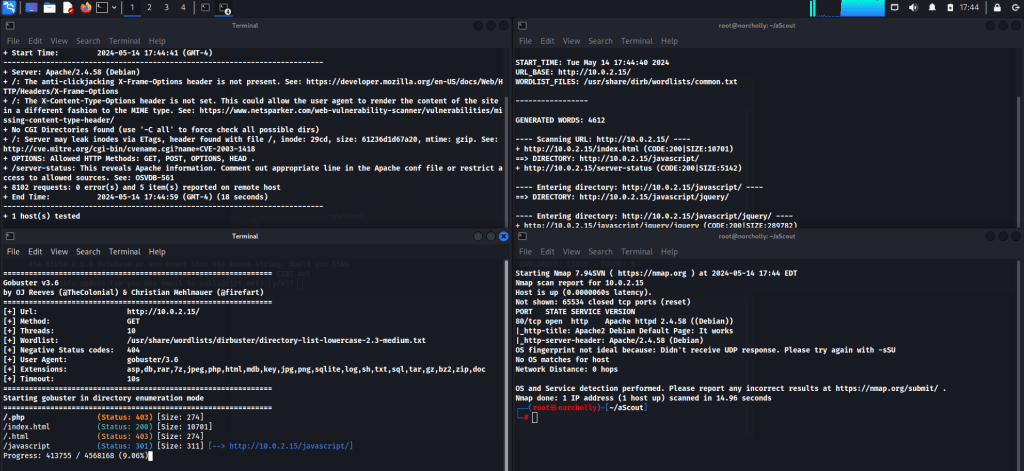
This bash script minimizes the time we lose by opening separate terminals and typing commands individually for the tools we use in active reconnaissance, such as nmap, gobuster, nikto, and dirb. With just a single line of code, it automatically starts all the tools I mentioned earlier.
INSTALLATION STEPS
Let’s download the script to our Kali Linux using the command git clone https://github.com/norcholly/ascout.git, and then grant executable permissions to all users using this command: chmod +x ascout.sh

Usage GuIDE
Now that our script is executable, let’s write the IP Address of the target system and an argument output.txt to save the outputs, and the speed option then let’s launch our script. ./ascout.sh <ip_address> <output_file> <Speed Range 1-5 (1 slowest, 5 fastest)

RequIREMENTS
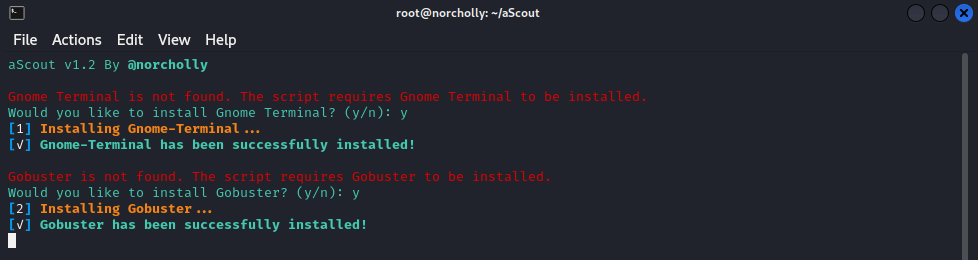
If the tools used in the script (gnome-terminal and gobuster) are not already installed on the Linux operating system, the script automatically detects this and first installs these tools to the operating system with user permission.
How The ScrIPT Works
Right at this point, since all the actions we’re about to take could potentially leave a footprint on the target system and be seen as a security threat, let’s give the user a warning.(If you don’t want this tab to appear every time you run a script, don’t forget to add “y” as the third argument in the command line when running the script.)

If the user agrees to proceed, let’s send an ICMP packet to see if we are on the same network as the target machine or if we can communicate with it.
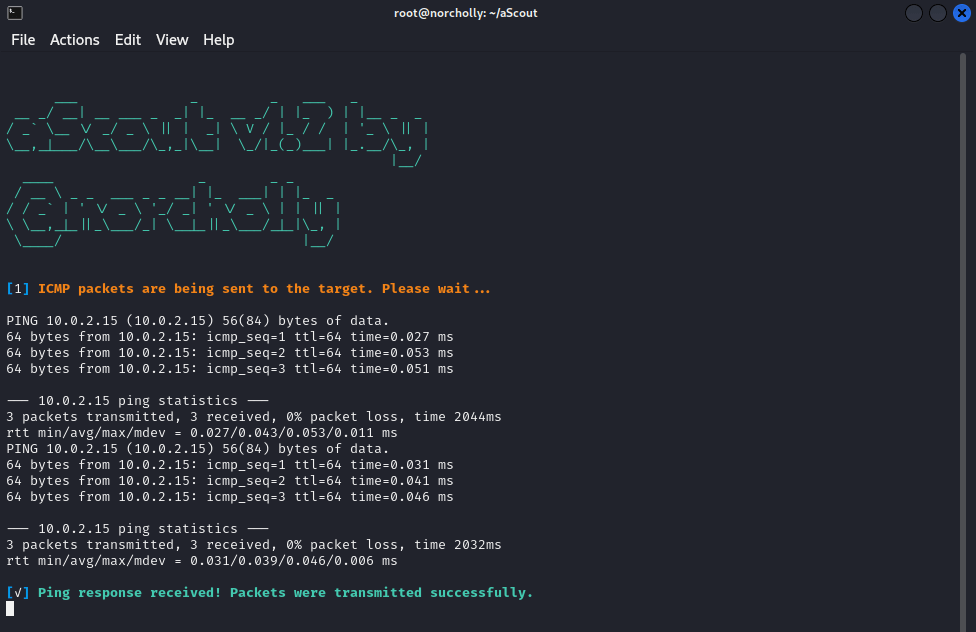
If there is no packet loss, the scanning process will start automatically. Sit back and enjoy!
FAQ (Frequently Asked QuestIons)
Question 1: The ping packets were not delivered; there was packet loss. What will happen now?
Answer: If the IP address is incorrectly entered, you won’t receive any results. However, if the IP address is correct but you’re not receiving ping responses, there is a waiting period of 15 minutes. If no ping responses are received within this 15-minute period, the script will exit.
Question 2: I want to use different arguments for the tools used. What do I need to do?
Answer: Firstly, since this script is open-source, you can shape it however you like. You can open the .sh file with any text editor application (such as nano, vim, etc.) and find the lines of code that start with “gnome-terminal” under the active_reconnaissance function. From there, you can modify the codes and arguments for the tools to suit your needs.
ConclusIon
I hope this script will be helpful for you. For feedback and contributions, you can reach me at alirfandogan@gmail.com
Thank you!

 ALI IRFAN DOGAN
Yorum bırakın